How to Install & Set Up TIS2000 & GlobalTIS for GM Tech2 Scanner – Step-by-step guide for Windows XP setup, software installation, and crack activation. Works with Chinese Tech2 clones. Free Download links included!
IntroductionThis guide will walk you through the installation and setup of TIS2000 and GlobalTIS, essential software for using the GM Tech2 Scanner (including Chinese GM tech2 clones). These programs allow you to access GM vehicle diagnostics, programming, and repair information.
System RequirementsOperating System: Windows XP Professional (32-bit) is strongly recommended.
Windows 7 (32-bit) may work, but results vary.
Avoid newer Windows versions (8/10/11) unless using a virtual machine or compatibility mode.
Hardware: A physical serial (COM) port is ideal. USB-to-serial adapters may work, but reliability varies.
Tech2 Hardware: A
GM Tech2 scanner (original or clone) with PCMCIA cards (e.g., GM-English 33.004 or Saab-English 148).
GM TIS2000 Software Free Downloads
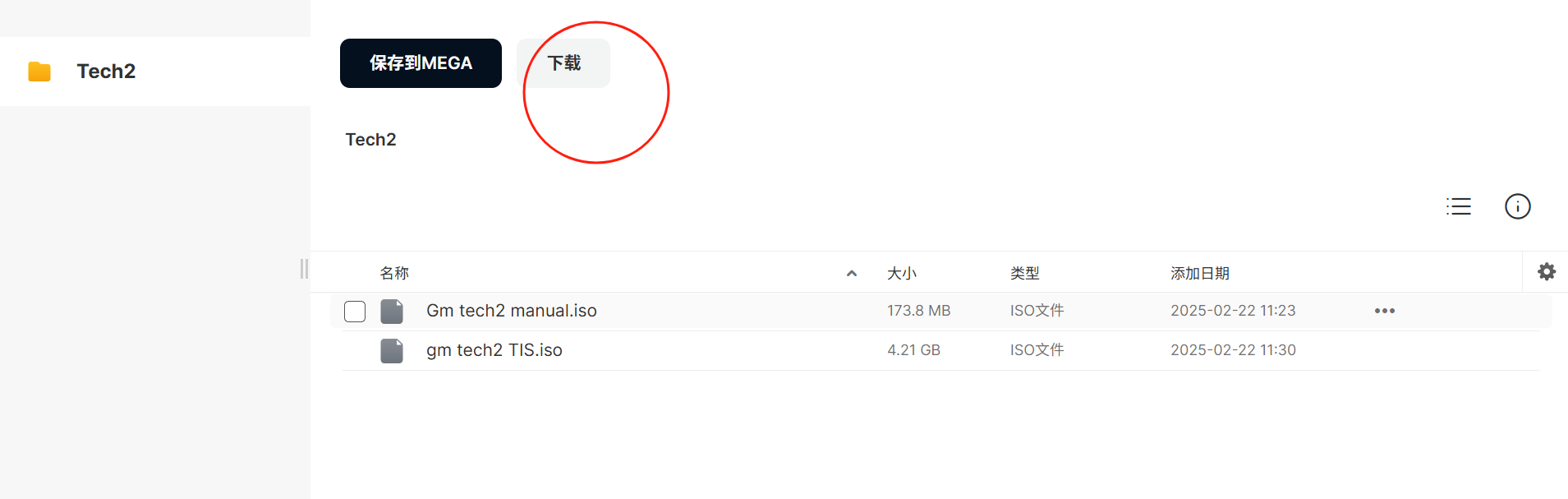
Step 1: Setting Up Windows XP
Before installing TIS2000 and GlobalTIS, ensure your Windows XP system is properly configured.
1.1 Fresh Windows XP Installation
Install Windows XP Professional SP3 (32-bit) on a compatible PC.
Disable automatic updates (not needed for offline use).
Install necessary drivers (chipset, video, USB).
Disable write caching for USB drives (to avoid "Safely Remove Hardware" prompts):
Open Device Manager → Disk Drives → Right-click USB drive → Properties → Policies → Uncheck "Enable write caching."
1.2 Install Unofficial Windows XP SP4
Since Microsoft no longer supports XP, use Unofficial SP4 for security updates:
Download from: RyanVM Forum
Install on your XP machine (takes ~1 hour).
Step 2: Installing TIS2000
TIS2000 is required for GM Tech2 diagnostics.
2.1 Download & Extract TIS2000
Download "TIS2000 Dongle Crack.7z" from the Mega.nz folder.
Extract using 7-Zip (Download 7-Zip).
Copy the extracted files to a USB drive.
2.2 Install
Tech2 TIS2000 on XP
Navigate to the "Saab TIS2000 2.2008" folder.
Run SETUP.EXE (car + Tech2 icon).
Accept all defaults during installation.
2.3 Install Dongle Emulator & Crack
Run DDINST32.EXE (from the "Drivers" folder).
Choose Express Installation.
Replace the following files:
Copy id.dll and SCAControlUI.exe to:
C:\Program Files\cosids\bin
Copy GOODKEY.SSI and SSIPDDP.SYS to:
C:\Windows\System32
TIS2000 is now installed!
Step 3: Installing GlobalTIS
GlobalTIS provides access to GM repair manuals and programming data.
3.1 Download & Prepare GlobalTIS
Download "GlobalTIS.zip" from the Mega.nz folder.
Extract and locate "Saab Global TIS 2010-1.iso".
Burn the ISO to a DVD (or mount virtually).
3.2 Install GlobalTIS on XP
Insert the DVD and run the installer.
Use default settings (do not change paths or ports).
When prompted, enter a 6-digit Dealer Code (e.g., 599599).
Wait for installation (takes a long time).
3.3 Crack GlobalTIS
After installation, open GlobalTIS from the desktop.
Enable Intranet Settings in Internet Explorer.
Click Edit Dealership Data → Enter fake info (use the same Dealer Code).
Click Email/Fax Registration → Save the "registration.pdf" file.
Open registration.pdf in Foxit Reader and note the 64-character Software Key.
3.4 Generate License Key
Copy KeyGen.bat and KeyGen.class to:
C:\Program Files\GlobalTIS\tomcat\webapps\tis2web\WEB-INF\lib
Open Command Prompt and navigate to the same folder.
Run:
cmd
keygen [PASTE_64_CHAR_KEY] >> key.txt
Open key.txt and copy the Subscriber ID and License Key.
Paste them into GlobalTIS registration and click Register License Key.
GlobalTIS is now activated!
Step 4: Final Setup
Disable Internet Access (to prevent unwanted updates).
Test Tech2 Connection:Connect the Tech2 scanner to the COM port.
Open TIS2000 → Check if the scanner is detected.
TroubleshootingTIS2000/GlobalTIS not working?Ensure dongle drivers are installed.
Verify correct COM port settings in Device Manager.
Try a different USB-to-serial adapter if using one.
GlobalTIS registration fails?Make sure the Software Key is copied correctly (no spaces/hyphens).
Re-run KeyGen if needed.
For more detail about how to install activation GM tech2 tis2000 and globalTIS, you may link to :
https://www.saabcentral.com/threads/setting-up-tis2000-and-globaltis.665465/You now have TIS2000 and GlobalTIS fully installed and ready for use with your GM Tech2 Scanner!
Need a Tech2 scanner? Visit our store for high-quality GM Tech2 clones with worldwide shipping!
For further assistance, contact us at:
www.cartooldeal.com or send email to
Kelly@cartooldeal.com
Happy diagnosing!